Wondering how to reorder pages in a PDF document? Here’s a step-by-step guide on how to reorder pages in a PDF.
You open a PDF and the pages are all mixed up. Page 5 shows up before page 2, or the cover page sits at the very end.
This happens more often than you might think. The good news is that learning how to reorder pages in a PDF file is quick and easy.
You don't need costly software or tech skills to fix the problem. A free online tool can put your pages back in the right order in about a minute.
In this guide, you will learn why pages get out of order in a PDF document. We’ll also explain how you can easily reorder pages in a PDF file using our free PDF Reorder Pages Tool.
Why Do PDF Pages End Up Out of Order?
Pages in a PDF document rarely get mixed up on purpose. Most of the time, it happens during scanning or when you combine files.
Here are the most common causes:
- Scanning mistakes: Feeding paper into a scanner in the wrong order is easy to do, especially with large stacks.
- Double-sided scans: Some scanners save all the front pages first and all the back pages last.
- Merging files: When you combine several PDFs, the pieces may land in the wrong sequence.
- Late additions: A new page added at the end may belong in the middle.
Why Should You Reorder PDF Pages?
A PDF document in the wrong order is hard to read and looks unprofessional. Fixing it makes a big difference.
- Clear reading flow: Readers can follow your ideas from start to finish.
- Professional look: Reports, proposals, and résumés make a better first impression.
- Correct forms: Applications and contracts often must follow a set page order.
- Easy printing: Pages print in the right order, so you don't have to sort paper by hand.
3 Ways to Reorder PDF Pages
There is more than one way to rearrange pages in a PDF. Some ways cost money, while others take a lot of extra work.
1. Paid Desktop Software
Programs like Adobe Acrobat Pro let you drag pages around. They work well, but you need a paid plan and installed software.
2. Rescanning or Rebuilding the File
You could rescan the paper in the right order or split the PDF and merge it again. Both methods take time and can lower quality.
3. A Free PDF Pages Reorder Tool
An online PDF pages reorder tool lets you reorder PDF pages for free, right in your browser. There is nothing to buy or install.
| Method | Cost | Install Needed? | Time |
|---|---|---|---|
| Paid Desktop Software | Paid Plan | Yes | Fast |
| Rescan or Rebuild | Free | Sometimes | Slow |
| Online PDF Pages Reorder Tool | Free | No | Fast |
Why Use File Tools Online to Reorder PDF Pages?
The PDF Reorder Pages Tool by File Tools Online gives you full control in a simple way. You just type the order you want, and the tool does the rest.
Here is what makes it a great choice:
- Full control over order: Move any page to any spot using a simple list of numbers.
- Built-in error checks: The tool checks your list before it touches your file. It catches missing, repeated, or wrong page numbers right away.
- No lost pages: Since every page must appear once, nothing gets dropped by accident.
- Free with no watermark: You can start without an account, and nothing gets stamped on your pages.
- Private and secure: Files travel over an encrypted connection and are deleted within 30 minutes.
- Works in your browser: There is no software to download or install.
How to Reorder Pages in PDF?
Follow these simple steps to rearrange your PDF pages online. The whole process usually takes about a minute.
Step 1: Plan Your New Order
Open your PDF in any viewer and look through the pages. Write down the order you want, using the current page numbers.
Step 2: Open the Tool
Go to filetoolsonline.com/pdf-reorder-pages. You can start right away without an account, and a free account raises your daily limit.
Step 3: Upload Your PDF
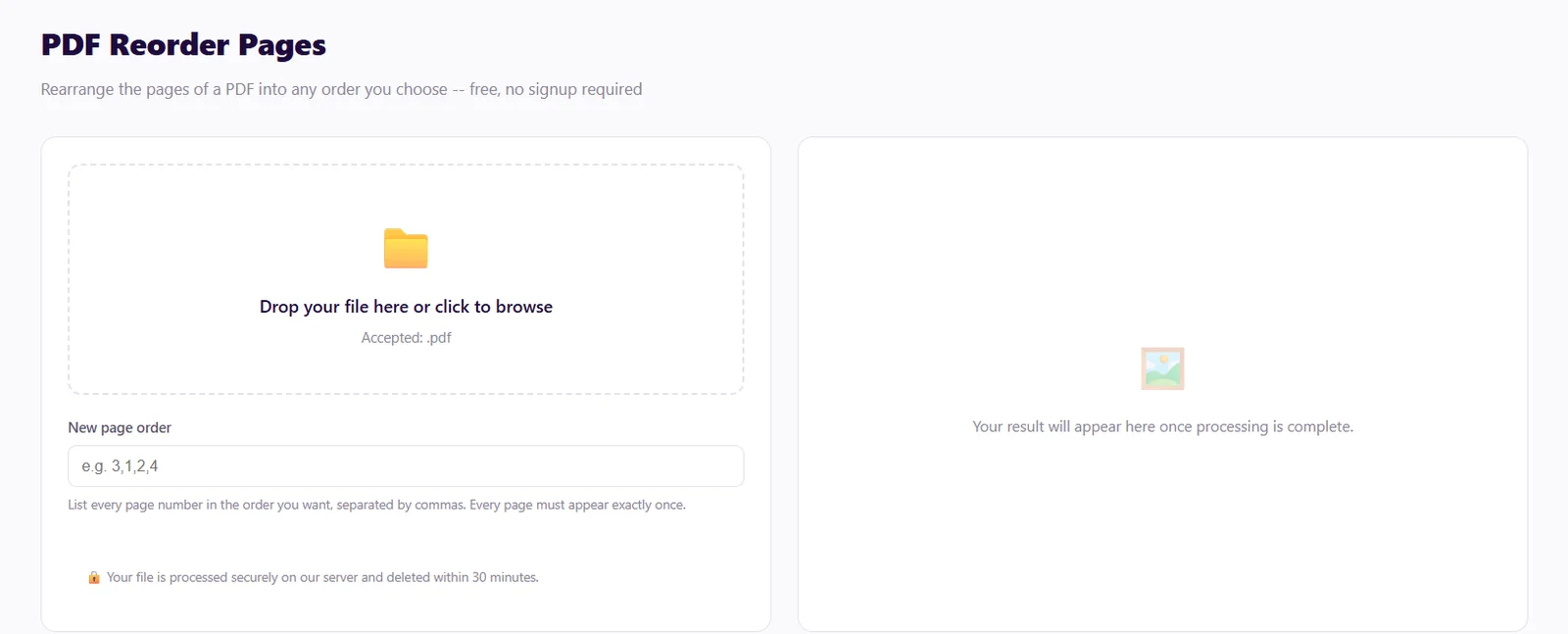
Drag and drop your PDF into the upload box. You can also click the box to browse and pick a file.
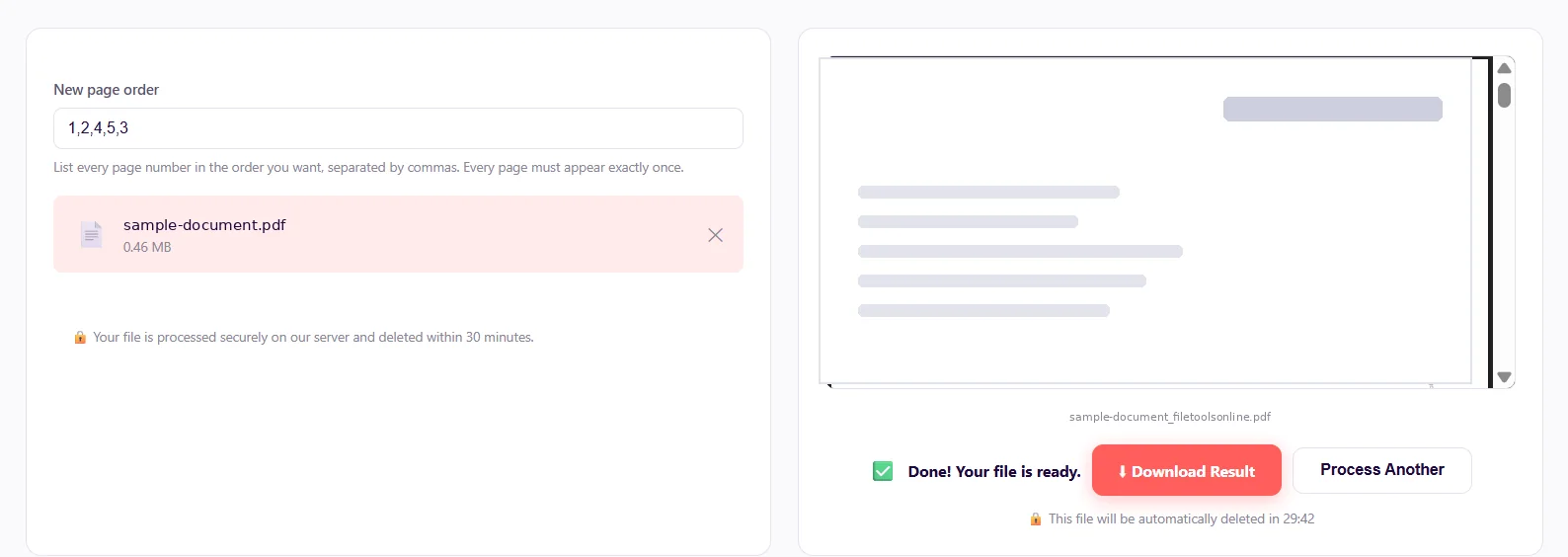
Step 4: Enter the New Page Order
In the New page order box, type every page number in the order you want. Separate the numbers with commas.
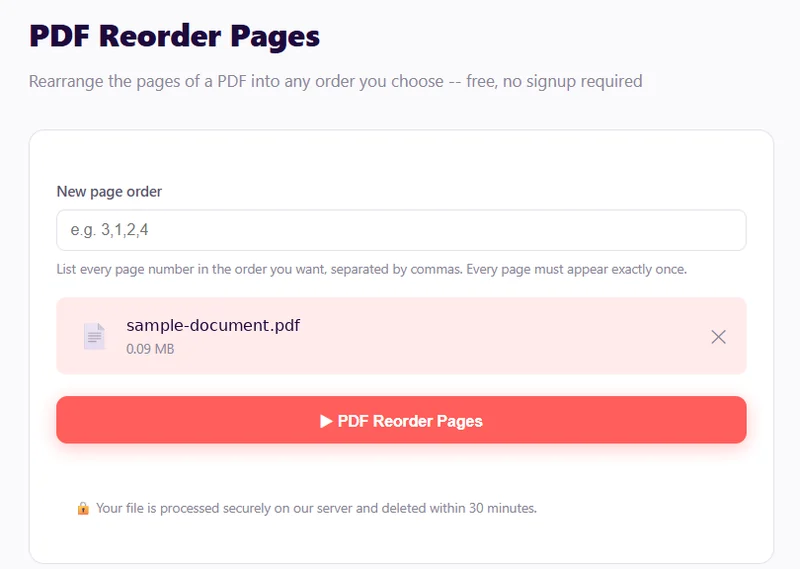
For example, say you have a 4-page PDF and want page 3 first. You would type 3,1,2,4.
Remember, each page must appear exactly once. Include pages that are not moving, too.
Step 5: Click "PDF Reorder Pages"
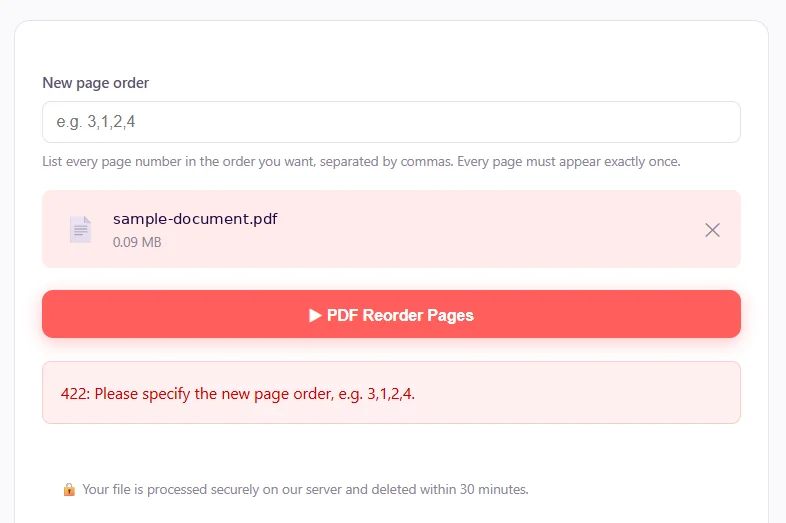
Click the “PDF Reorder Pages” button. If your list has a mistake, the tool will tell you what to fix before it changes anything.
Step 6: Download Your Reordered PDF
When you see the "Done! Your File is Ready" message, click Download Result. Open the file to check that every page sits where it should.
Tips for Reordering PDF Pages
A little planning helps you get it right the first time. Keep these tips in mind:
- Count your pages first. Your list must include every page, so know the total before you start.
- Write the order on paper. For long files, a quick note helps you avoid mistakes.
- Remove pages separately. The PDF pages reorder tool won't delete pages, so use the PDF remove pages tool for that.
- Fix sideways pages. If a page is turned the wrong way, try the PDF rotate tool.
- Number pages last. Once the order is right, add page numbers with the PDF add page numbers tool.
- Merge first. Combining files? Use PDF merger first, then reorder the single file.
Is It Safe to Reorder PDF Pages Online?
Yes, reordering PDF pages online is safe, especially when you’re using a trusted site like filetoolsonline.com.
File Tools Online sends your file over an encrypted connection. It processes the file on a secure server and deletes it automatically within 30 minutes.
Frequently Asked Questions (FAQs)
Can I reorder PDF pages for free?
Yes. You can use the PDF pages reorder tool by File Tools Online to reorder PDF pages for free.
Do I need to list every page, even ones that don't move?
Yes. You must list the full new order, so no page gets dropped by mistake.
What happens if I make a mistake in my list?
The tool checks your list first. If a page is missing or repeated, it tells you what to fix before processing.
Will reordering change the quality of my PDF pages?
No. The tool only changes the order of your pages, not what is on them.
Can I delete PDF pages with this tool?
No. Every page must stay in the file. Use the PDF remove pages tool by File Tools Online to delete pages.
Reorder Pages in a PDF: free, no account needed to start
All 140+ tools. Files deleted in 30 minutes. The current daily limits are on the Pricing page.
Open the tool →