Wondering how to convert a PDF file to an Excel file? Here’s how you can easily convert a PDF to Excel.
PDFs are great for sharing files. But they are hard to work with when you need to edit the numbers inside them.
Maybe you have a bank statement, an invoice, or a sales report stuck in a PDF. You want to sort it, add totals, or build a chart, but the data won't move.
That is why so many people search for how to convert a PDF to Excel. The good news is that it takes less than a minute with a PDF to Excel converter.
In this guide, you will learn why PDF to Excel conversion matters and which methods work best. We’ll also walk you through how to convert PDF to Excel online using our PDF to Excel converter.
Why Convert a PDF to Excel?
A PDF is built to look the same on every screen. That makes it perfect for sharing, but it locks your data in place.
Excel works the other way. It lets you sort, filter, add formulas, and turn rows of numbers into charts.
When you convert a PDF to Excel, you get the best of both. You keep the data from the original file and gain the power to work with it.
Here are some common reasons people make the switch:
- Bank statements: Track spending, sort transactions, and reconcile accounts.
- Invoices: Pull out line items and totals for bookkeeping.
- Financial reports: Compare figures and build pivot tables.
- Price lists and catalogs: Move product data into your own sheets.
- Research data: Analyze tables without typing them out again.
3 Common Ways to Convert PDF to Excel
There is more than one way to get data out of a PDF. Some methods are quick but messy, while others are slow but careful.
1. Manual Retyping
You can open the PDF and type each number into Excel by hand. This works for a few rows, but it is slow and easy to get wrong.
2. Copy and Paste
Copying a table from a PDF seems faster. But the pasted data often lands in one column, and numbers may turn into text that formulas can't use.
3. A PDF to Excel Converter
A PDF to Excel converter reads the table structure for you. It places each value in the right row and column, so your sheet is ready to use.
| Method | Speed | Accuracy | Keeps Columns? |
|---|---|---|---|
| Manual Retyping | Very Slow | Prone to Typos | Yes, If Careful |
| Copy and Paste | Fast | Often Broken | Usually Not |
| PDF to Excel Converter | Less than 1 Minute | High | Yes |
For anything more than a handful of rows, a PDF to Excel converter is the clear winner. So which converter should you choose?
Why Use File Tools Online to Convert PDF to Excel?
Many online PDF to Excel converters just pull text off the page and dump it into a single column. You are left to rebuild the table yourself.
The File Tools Online PDF to Excel tool works differently. It finds the real rows and columns and rebuilds them cell by cell.
Here is what makes it stand out:
- Several detection methods: The tool uses Camelot, a trusted table-reading library. It tries several detection methods to catch tables that simpler tools miss.
- Works with or without borders: It reads tables with clear grid lines and tables that only use spacing to line up columns.
- Keeps numbers as numbers: Your values stay numeric, so formulas, sorting, and pivot tables work right away.
- One sheet per table: You can put each table on its own worksheet or combine them all into one.
- Free with no watermark: You can start without an account, and nothing gets stamped on your data.
- Secure processing: Files travel over an encrypted connection and are deleted within 30 minutes.
- Works on any device: Use it on Windows, Mac, Linux, Chromebook, Android, or iPhone with nothing to install.
How to Convert a PDF to Excel Online?
You don't need Adobe Acrobat or Microsoft Office for this. Just follow these simple steps to convert PDF to Excel online.
Step 1: Open the Tool
Go to filetoolsonline.com/pdf-to-excel. You can start right away without an account, and a free account raises your daily limit.
Step 2: Upload Your PDF
Drag and drop your PDF into the upload box. You can also click the box to browse and pick a file from your device.
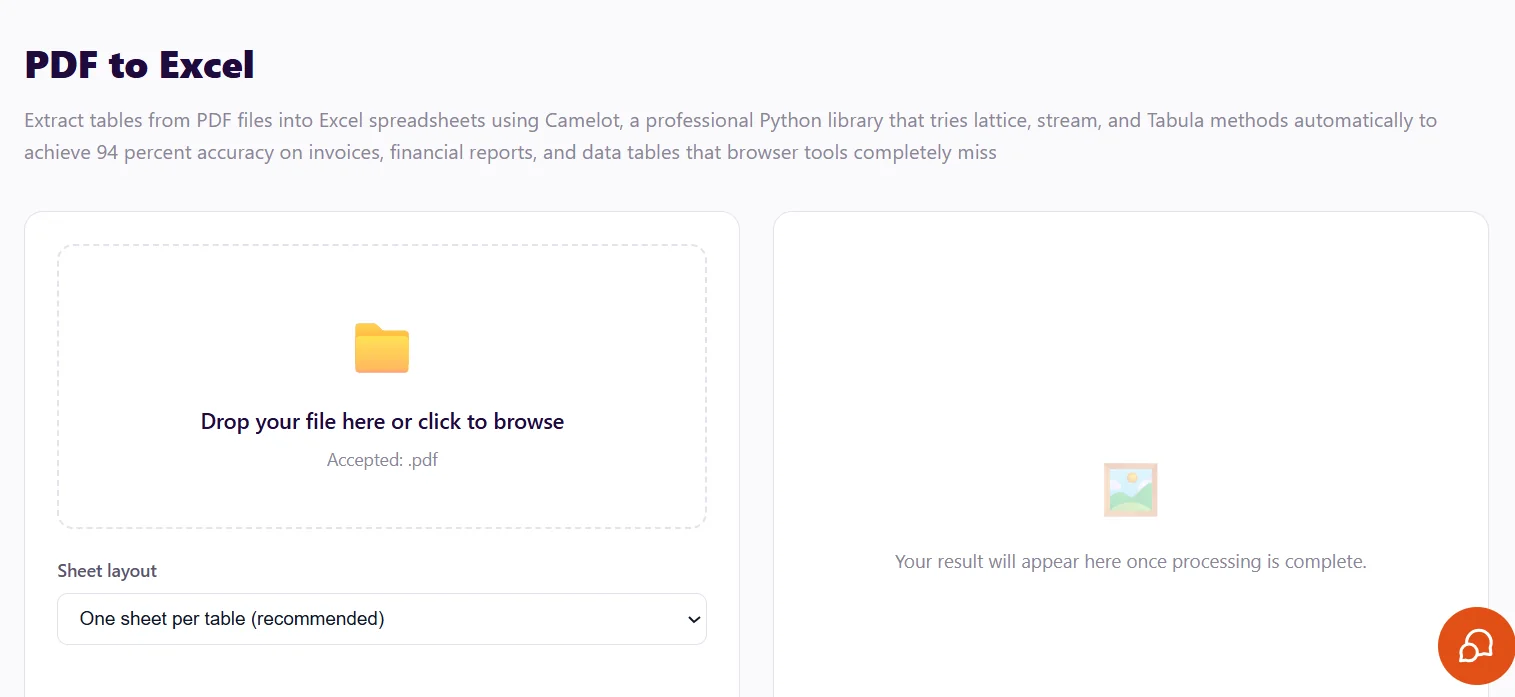
Step 3: Choose Your Sheet Layout
Pick how you want the tables arranged. One sheet per table is the recommended choice, while All tables in one sheet puts everything together.
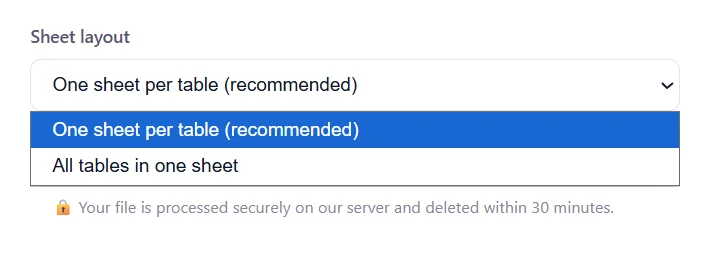
If your PDF has several separate tables, stick with one sheet per table. This keeps them from running into each other.
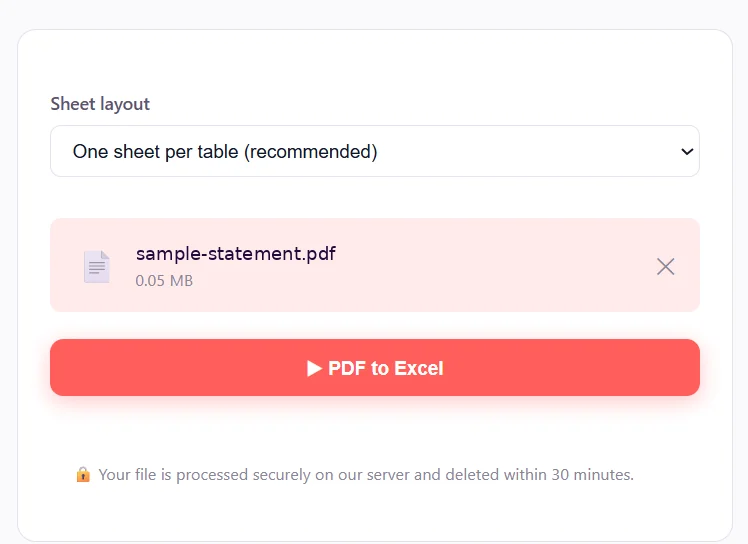
Step 4: Click the "PDF to Excel" Button
Click the PDF to Excel button to start. The tool reads every page and pulls out each table it finds.
Step 5: Download Your Excel File
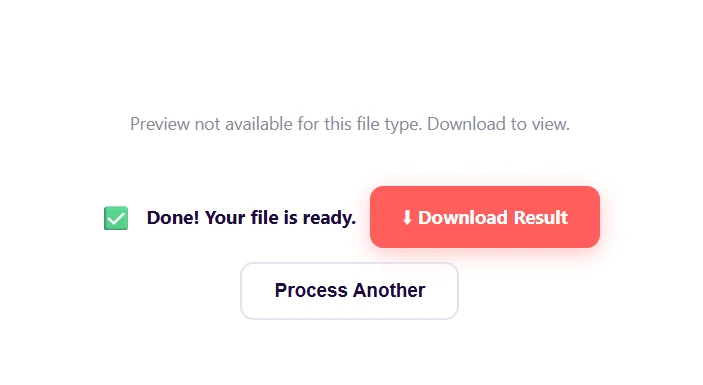
When you see the "Done! Your File is Ready" message, click Download Result. You will get an editable .xlsx file.
Step 6: Open and Review Your Spreadsheet
Open the file in Microsoft Excel, Google Sheets, LibreOffice Calc, or Apple Numbers. Give it a quick check, then start sorting, filtering, and adding formulas.
That's it! The whole process usually takes less than a minute. But what if your file is a scan or a bank statement?
How to Handle Scanned PDFs and Bank Statements?
Not every PDF is the same. Knowing the difference between a digital PDF and a scanned one will help you get cleaner results.
Digital vs. Scanned PDFs
A digital PDF has real text you can select with your mouse. The converter reads this text directly, which gives the best accuracy.
A scanned PDF is really just a picture of a page. There is no text underneath, only pixels, so a converter has nothing to read.
Fix Scanned Files with OCR First
OCR stands for Optical Character Recognition. It is a tool that "reads" a picture and turns the letters into real text.
If your file is a scan, run it through the free File Tools Online PDF OCR tool first. Then upload the result to the PDF to Excel converter as usual.
Converting a Bank Statement PDF to Excel?
Bank statements are one of the most common PDF files people convert. Follow these quick tips for the best outcome:
- Download the statement from your bank as a PDF, not as a screenshot or photo.
- Upload it and keep "one sheet per table" if it spans several pages.
- Open the Excel file and check the date, description, debit, credit, and balance columns.
- Add your own columns for categories, then sort or build a pivot table.
Tips for Better PDF to Excel Results
A little prep goes a long way. These simple habits will cut down the cleanup you need to do after converting.
- Use the original digital file. PDFs exported straight from software convert more accurately than scans.
- Convert the whole document. Don't screenshot single pages, or multi-page tables may break apart.
- Choose one sheet per table. This keeps separate tables neat and easy to find.
- Check merged cells. Complex layouts may need a small fix, which only takes a moment in Excel.
- Run OCR on scans first. This gives the converter real text to work with.
Is It Safe to Convert PDF to Excel Online?
Yes, as long as you are using a trusted PDF to Excel converter like File Tools Online. Invoices and bank statements often hold private details, so security matters.
FileToolsOnline.com uploads your files over an encrypted HTTPS connection. It processes them on a secure server and deletes them automatically within 30 minutes.
Frequently Asked Questions (FAQs)
Is the File Tools Online PDF to Excel converter free?
Yes. You can use it without an account up to a daily limit, a free account raises that limit, and there is no watermark on your data.
What file format will I get?
You get a modern .xlsx file. It opens in Excel, Google Sheets, LibreOffice Calc, and Apple Numbers.
Will the formatting stay the same?
Your rows, columns, and values stay in place. Fonts and colors don't carry over, because PDFs and spreadsheets store styling differently.
Does it work with multi-page PDFs?
Yes. The tool reads every page and pulls out all the tables it finds.
Can I convert my spreadsheet back to PDF?
Yes. You can use the free Excel to PDF converter to turn your Excel sheet back into a shareable PDF.
Convert PDF to Excel: free, no account needed to start
All 140+ tools. Files deleted in 30 minutes. The current daily limits are on the Pricing page.
Open the tool →