Confused about how to compress your PDF file? Here’s how to compress a PDF file for free online.
Have you ever tried to email a PDF, only to see a "file too large" error? Or maybe a job portal rejected your PDF upload because it went over the size limit.
Large PDFs are a common headache. The fix is simple once you know how to compress a PDF file the right way.
Compressing a PDF shrinks its file size while keeping the pages, text, and layout the same. You end up with a lighter file that is easy to send, upload, and store.
In this guide, you will learn why PDFs get so big and the best ways to make them smaller. You will also get a step-by-step walkthrough using the free PDF compressor by File Tools Online.
Why Are PDF Files So Large?
Before you compress a file, it helps to know what makes it heavy. In most cases, the text is not the problem.
Here are the usual reasons a PDF file grows in size:
- High-resolution images: Photos and graphics take up most of the space in many PDFs.
- Scanned pages: A scanner saves each page as a full picture, so even a short scan can be many megabytes.
- Embedded fonts: Some PDFs carry full font files inside them so the text looks the same everywhere.
- Extra data: Hidden details like the author’s name and creation date add a little weight too.
Why You Should Compress Your PDF Files?
A large PDF file slows you down in many small ways. Compressing it solves several problems at once.
- Email attachments: Most email services, like Gmail and Outlook, cap attachments at around 20–25 MB.
- Online forms and portals: Job sites and government forms often set strict upload limits.
- Faster sharing: Smaller files send quicker over chat apps like WhatsApp.
- Less storage: Lighter files free up space on your drive and in the cloud.
- Faster websites: Compressed PDFs load faster for your visitors.
3 Ways to Make a PDF File Smaller
There are a few ways to tackle how to make a PDF smaller. Each one has its own pros and cons.
1. Desktop Software
Paid software like Adobe Acrobat has a "Reduce File Size" feature. It works well, but you need a subscription and installed software.
2. Built-In Save or Export Options
Some apps let you export a PDF at a lower quality. These options are limited, and the results can be hit or miss.
3. An Online PDF Compressor
A free online PDF compression tool lets you compress PDF online in your browser. There is nothing to buy or install, and it works on any device.
| Method | Cost | Install Needed? | Control Over Quality |
|---|---|---|---|
| Desktop Software | Paid subscription | Yes | High |
| Built-in Export | Free | No | Low |
| Online PDF Compressor | Free | No | High |
Why Use File Tools Online to Compress PDFs?
Some PDF compressors barely shrink your file. Others squeeze it so hard that the text turns blurry.
Our PDF compressor compresses your PDF files just right. Here is what it offers:
- Powered by Ghostscript: This trusted engine is used in professional printing. It shrinks images and tidies up the file without harming your text.
- Three compression levels: You choose the trade-off between file size and quality.
- Advanced options: You can set image resolution, switch to grayscale, or remove hidden details like the author’s name.
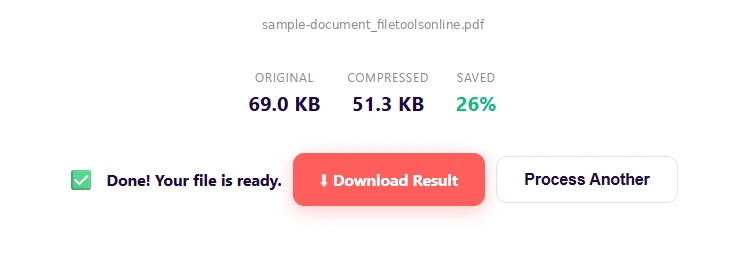
- Clear results: The tool shows the original size, the new size, and how much you saved.
- Free, with no watermark: You can start without an account, and nothing is stamped on your pages.
- Private and secure: Files travel over an encrypted connection and are deleted within 30 minutes.
- Works on any device: Use it on Windows, Mac, Linux, Chromebook, Android, or iPhone.
How to Compress a PDF File Online?
You don't need Adobe Acrobat or any other software. Just follow these steps to compress a PDF online in about a minute.
Step 1: Open the Tool
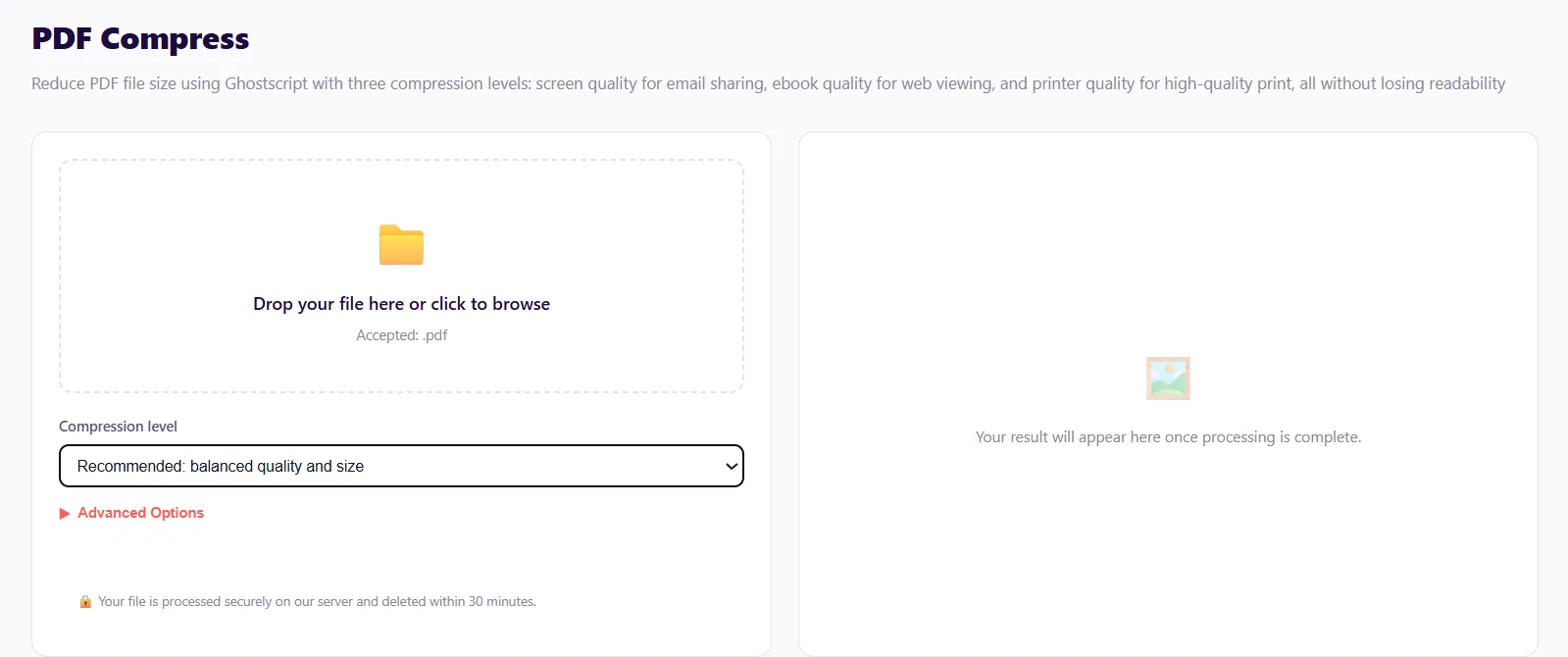
Go to filetoolsonline.com/pdf-compress. You can start right away without an account, and a free account raises your daily limit.
Step 2: Upload Your PDF
Drag and drop your PDF into the upload box. You can also click the box to browse and pick a PDF file to upload.
Step 3: Choose a Compression Level
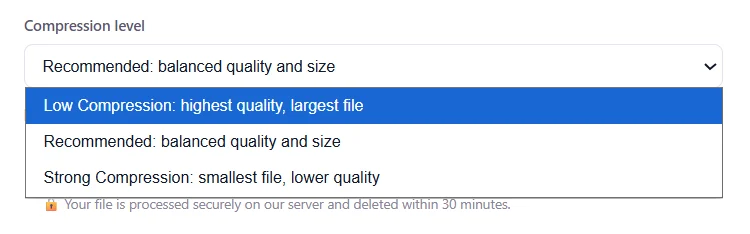
Pick the compression level that fits your needs:
| Level | Best for | Result | |||
|---|---|---|---|---|---|
| Low Compression | Printing | Highest quality, largest file | |||
| Recommended | Email, web, and everyday use | Balanced quality and size | |||
| Strong Compression | Strict size limits | Smallest file, lower quality |
Not sure which one to pick? Start with Recommended, since it keeps your PDF file sharp on screen.
Step 4: Set Advanced Options (Optional)
Click Advanced Options for more control. You can set image resolution to 72, 150, or 300 DPI (dots per inch, a measure of image detail).
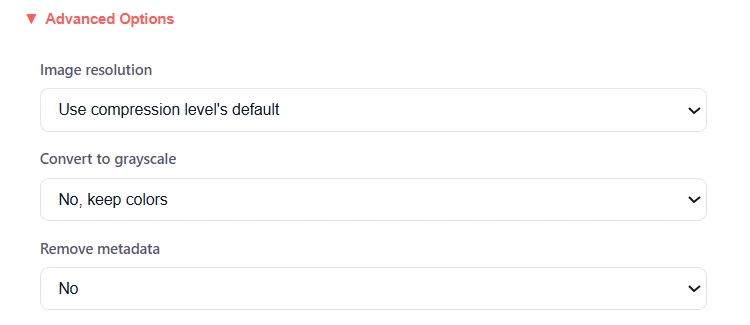
You can also convert the file to grayscale or remove metadata. Grayscale works well for text documents, and removing metadata strips details like the author and creation date.
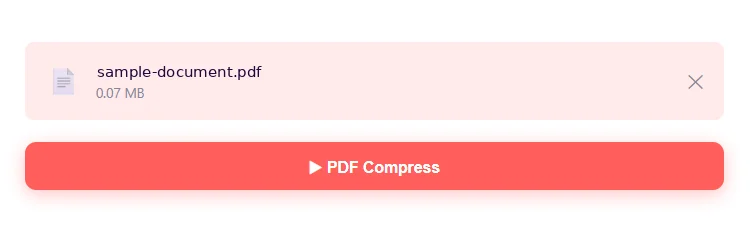
Step 5: Click "PDF Compress"
Click the “PDF Compress” button. The tool will show the original size, the compressed size, and how much space you saved.
Step 6: Download Your Smaller PDF
When you see the "Done! Your File is Ready" message, click Download Result. Your new PDF will open in any reader, just like the original.
That's all it takes!
Tips to Compress a PDF Without Losing Quality
Most of a PDF's size comes from images, not text. That means you can often shrink a file a lot without any visible change.
Keep these tips in mind for the best results:
- Match the level to the job. Use Strong Compression for email limits, Recommended for daily use, and Low Compression for print.
- Edit first, compress last. Finish all your changes, then compress the final version once.
- Merge, then compress. Combining files? Use the PDF merge tool first, then compress the single file.
- Expect bigger savings on scans. Image-heavy files shrink the most, while text-only PDFs are already small.
- Make scans searchable. Run scanned files through the PDF OCR tool first if you need to search the text.
- Keep the original. Hold on to it until you've checked the compressed PDF version.
Is It Safe to Compress a PDF Online?
Yes, when you use a trusted PDF compression tool like File Tools Online.
FileToolsOnline.com uploads your PDF files over an encrypted HTTPS connection. It processes the file on a secure server and deletes it automatically within 30 minutes.
Frequently Asked Questions (FAQs)
Is this PDF compressor really free?
Yes. You can use it without an account up to a daily limit, a free account raises that limit, and no watermark is added to your PDF pages.
Will compressing my PDF make the text blurry?
No. Text stays sharp at every level. Only strong compression may soften images slightly in exchange for the smallest file.
How much smaller will my PDF get?
It depends on what's inside. Text-only files are already small, but scans and image-heavy PDFs usually shrink by half or more.
Can I compress a PDF on my phone or Mac?
Yes. Our PDF compressor runs in your browser, so it works the same on Mac, Windows, Android, and iPhone.
Can I compress several PDFs at once?
The PDF compress tool compresses one file at a time. To get one smaller file from many PDF files, use our PDF merge tool first and then compress.
Compress a PDF File: free, no account needed to start
All 140+ tools. Files deleted in 30 minutes. The current daily limits are on the Pricing page.
Open the tool →