Not sure how to compress the size of a video? Here’s how to compress a video file online for free.
You just recorded a great video, but now it won't send. Your email bounces it back, or the upload bar crawls for ages.
Video files are big, and most new phones make them even bigger. That's why so many people ask, "How to compress a video file?"
Compressing a video shrinks its size so it is easier to share, upload, and store. Done right, the video still looks clean and plays smoothly.
In this guide, you will learn why videos get so large and how compression works. We’ll also explain step-by-step how to compress the size of a video without losing quality using the free Video Compress Tool by File Tools Online.
Why Are Video Files So Large?
A video is really a long series of pictures shown very fast. Most videos play 30 or more pictures, called frames, every second.
On top of that, each frame may be in high definition or even 4K. Add sound, and a short clip can quickly reach hundreds of megabytes.
These are the main things that make a video heavy:
- Resolution: Higher resolution means more detail, and more detail means a bigger file.
- Frame rate: More frames each second add more data.
- Length: A longer video simply holds more frames.
- Bitrate: This is how much data the video uses each second. Cameras and phones often record at a high bitrate.
Why Should You Compress Your Videos?
Large-size videos cause problems almost everywhere. When you compress video size, you fix many of them in one step.
- Email: Most email services cap attachments at around 20–25 MB.
- Chat apps: WhatsApp and similar apps may reject large files or lower their quality.
- Uploads: Smaller files upload faster and fit size limits on forms and portals.
- Storage: Compressed videos free up room on your phone, computer, and cloud.
- Websites: Lighter videos help your pages load faster.
3 Ways to Compress a Video File
You have a few options to compress a video that is too big in size. Some take more time and skill than others.
1. Re-Record the Video
You could shoot the video again at a lower quality setting. But this only works if the moment can happen twice.
2. Use Desktop Editing Software
There are many desktop video editing software programs that let you export a reduced-size copy of the video. They work well, but you need to install them and learn their settings.
3. Use an Online Video Compressor
An online video compression tool lets you compress video online in your browser. There is nothing to install, and you keep your original file safe.
| Method | Install Needed? | Skill Level | Keeps Original? |
|---|---|---|---|
| Re-record | No | Low | No, you shoot again |
| Desktop Software | Yes | Medium to High | Yes |
| Online Compressor | No | Low | Yes |
Why Use File Tools Online to Compress Video?
Some compressors barely compress your video file. Others compress it so hard that the picture turns blocky.
Our online video compression tool reduces the size of your videos while keeping them looking good. Here is what makes File Tools Online a good fit for Discord, Instagram, WhatsApp, and email:
- Powered by FFmpeg: This is the same trusted engine behind many video apps and streaming services.
- H.264 encoding: H.264 is the most widely supported video format, so your file plays almost anywhere.
- Three compression levels: Pick more quality, more savings, or a balance of both.
- Resolution options: Keep the original size or scale down to 1080p, 720p, 480p, or 360p.
- Many formats supported: Upload MP4, MOV, MKV, AVI, or WebM files.
- Clear results: See the original size, the new size, and how much you saved.
- Free with no watermark: You can start without an account, and nothing gets stamped on your video.
- Private and secure: Files travel over an encrypted connection and are deleted within 30 minutes.
How to Compress a Video File Online for Free?
You don't need any editing skills for this. Just follow these simple steps.
Step 1: Open the Tool
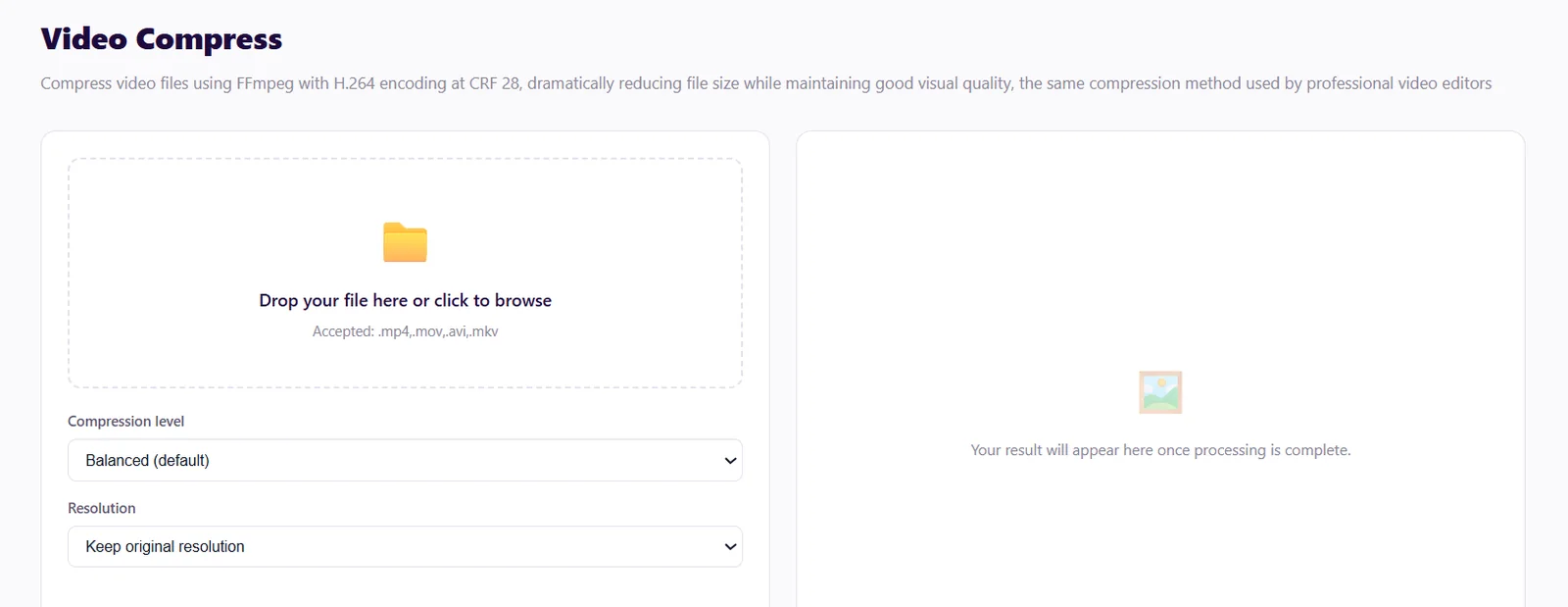
Go to filetoolsonline.com/video-compress. You can start right away without an account, and a free account raises your daily limit.
Step 2: Upload Your Video
Drag and drop your video into the upload box. You can also click the box to browse and pick a file from your device.
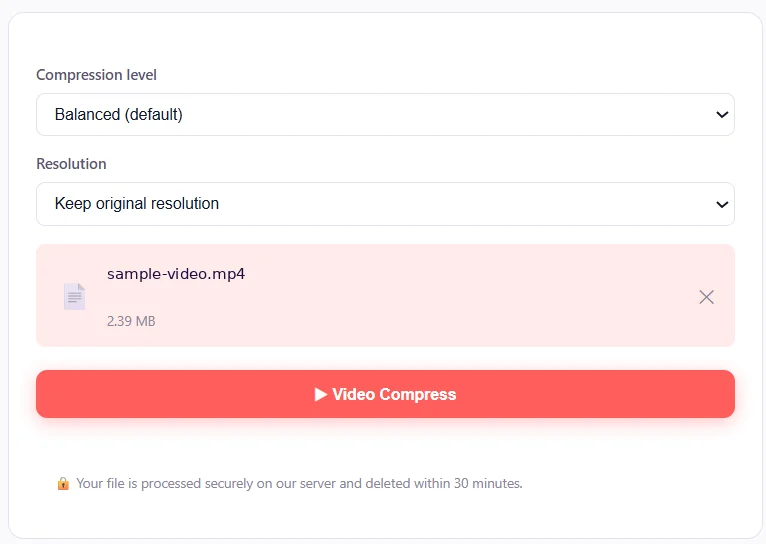
Step 3: Choose a Compression Level
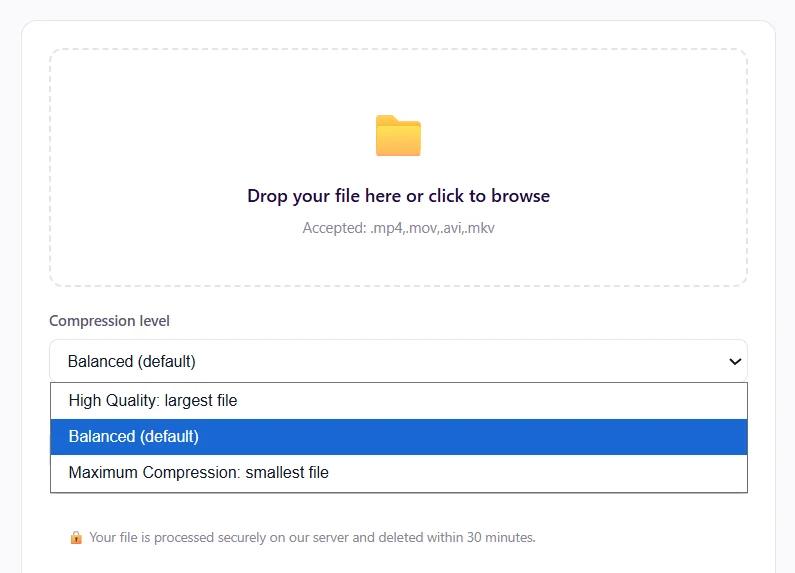
Pick the level that fits your needs:
| Level | Best for | Result | |||
|---|---|---|---|---|---|
| High Quality | Keeping the Best Quality | Largest File | |||
| Balanced (default) | Everyday sharing | Good Mix of Quality and Size | |||
| Maximum Compression | Strict Size Limits, Like Email | Smallest File |
Not sure which one to use? Start with Balanced, since it works well for most videos.
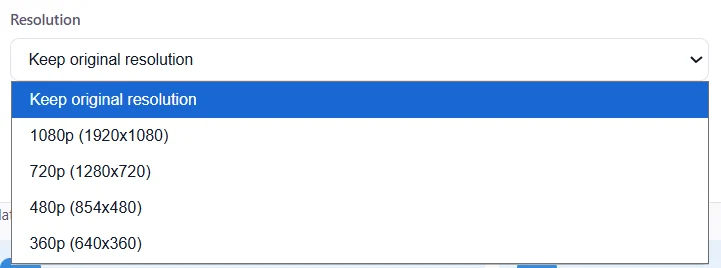
Step 4: Choose a Resolution
Select Keep original resolution to keep the same size picture. For a much smaller file, pick 1080p, 720p, 480p, or 360p.
Step 5: Click "Video Compress"
Click the “Video Compress” button to start. Longer videos take a bit more time, so give it a moment.
Step 6: Download Your Compressed Video
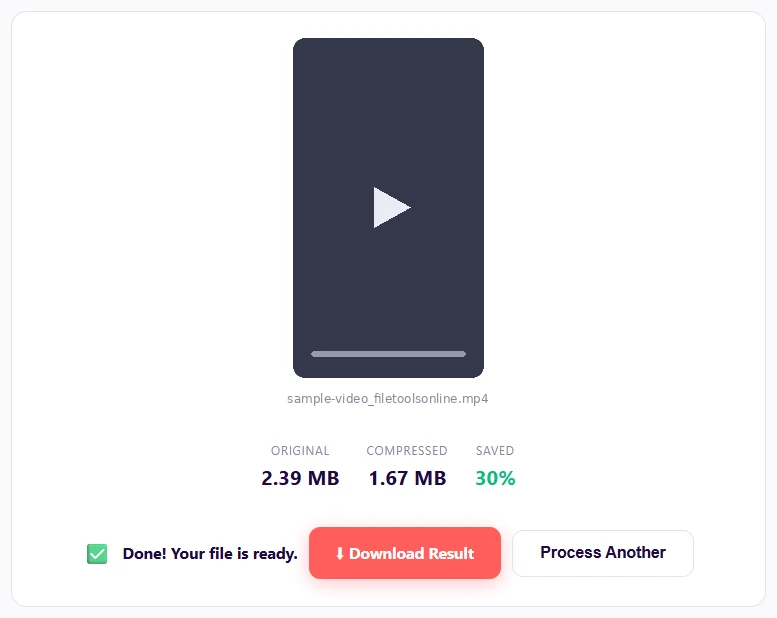
When you see the "Done! Your File is Ready" message, check how much space you saved. Then click Download Result to save your new video.
Tips to Compress Video Size Effectively
A few smart habits help you compress video files with less effort.
- Compress the final version. Finish your edits first, then compress once.
- Merge, then compress. Joining clips? Use the Merge Videos Tool first, then compress the single file.
- Need only the sound? The Video to MP3 Tool gives you a far smaller audio file.
- Keep the original. Hold on to it until you've checked the new version.
Is It Safe to Compress Video Online?
Yes, it’s safe to compress video online when you’re using a trusted site like filetoolsonline.com.
File Tools Online uploads your video over an encrypted HTTPS connection. It processes the file on a secure server and deletes it automatically within 30 minutes.
Frequently Asked Questions (FAQs)
Can I compress an MP4 video?
Yes. You can compress MP4 video files, along with MOV, MKV, AVI, and WebM.
Is the video compressor free?
Yes. You can use it without an account up to a daily limit, a free account raises that limit, and no watermark is added to your video.
How much smaller will my video get in size after compression?
It depends on the original file. Videos straight from a phone or camera usually shrink the most.
Can I compress a video on my phone?
Yes. The tool runs in your browser, so it works on Android and iPhone as well as computers.
Will my video still play everywhere?
Yes. The tool uses H.264, which plays on nearly every device and media player.
Compress a Video File: free, no account needed to start
All 140+ tools. Files deleted in 30 minutes. The current daily limits are on the Pricing page.
Open the tool →